





📸 Showcase • ✨ Features • 🚀 Deployment Guide • 🔧 Tech Stack • 💻 Development • 📄 License
 |
 |
 |
 |
 |
 |
 |
 |
- Powerful Editor: Integrated with Vditor, supporting GitHub-flavored Markdown, math formulas, flowcharts, mind maps, and more
- Secure Sharing: Content can be protected with access passwords
- Flexible Expiration: Support for setting content expiration times
- Access Control: Ability to limit maximum view count
- Customization: Personalized share links and notes
- Support for Raw text direct links: Similar to GitHub's Raw direct links, used for services launched via YAML configuration files
- Multi-format export: Supports export to PDF, Markdown, HTML, PNG images, and Word documents
- Easy Sharing: One-click link copying and QR code generation
- Auto-save: Support for automatic draft saving
- Multi-Storage Support: Compatible with various S3(R2, B2, etc.)/WebDav/Local Storage(Docker) storage aggregation services
- Storage Configuration: Visual interface for configuring multiple storage spaces, flexible switching of default storage sources
- Efficient Upload: Upload to S3 storage via pre-signed URLs/resumable chunked uploads, while other storage types use streaming uploads
- Real-time Feedback: Real-time upload progress display
- Custom Limits: Single upload limits and maximum capacity restrictions
- Metadata Management: File notes, passwords, expiration times, access restrictions
- Data Analysis: File access statistics and trend analysis
- Direct Server Transfer: Supports calling APIs for file upload, download, and other operations.
- Unified Management: Support for file/text creation, deletion, and property modification
- Online Preview: Online preview and direct link generation for common documents, images, and media files
- Sharing Tools: Generation of short links and QR codes for cross-platform sharing
- Batch Management: Batch operations and display for files/text
- WebDAV Protocol Support: Access and manage the file system via standard WebDAV protocol
- Network Drive Mounting: Support for mounting by some third-party clients
- Flexible Mount Points: Support for creating multiple mount points connected to different storage services
- Permission Control: Fine-grained mount point access permission management
- API Key Integration: WebDAV access authorization through API keys
- Large File Support: Automatic use of multipart upload mechanism for large files
- Directory Operations: Full support for directory creation, upload, deletion, renaming, and other operations
- System Management: Global system settings configuration
- Content Moderation: Management of all user content
- Storage Management: Addition, editing, and deletion of S3 storage services
- Permission Assignment: Creation and permission management of API keys
- Data Analysis: Complete access to statistical data
- Text Permissions: Create/edit/delete text content
- File Permissions: Upload/manage/delete files
- Storage Permissions: Ability to select specific storage configurations
- Read/Write Separation: Can set read-only or read-write permissions
- Time Control: Custom validity period (from hours to months)
- Security Mechanism: Automatic expiration and manual revocation functions
- High Adaptability: Responsive design, adapting to mobile devices and desktops
- Multilingual: Chinese/English bilingual interface support
- Visual Modes: Bright/dark theme switching
- Secure Authentication: JWT-based administrator authentication system
- Offline Experience: PWA support, allowing offline use and desktop installation
Before starting deployment, please ensure you have prepared the following:
- Cloudflare account (required)
- If using R2: Activate Cloudflare R2 service and create a bucket (requires payment method)
- If using Vercel: Register for a Vercel account
- Configuration information for other S3 storage services:
S3_ACCESS_KEY_IDS3_SECRET_ACCESS_KEYS3_BUCKET_NAMES3_ENDPOINT
The following tutorial may be outdated. For specific details, refer to: Cloudpaste Online Deployment Documentation
👉 View Complete Deployment Guide
Using GitHub Actions enables automatic deployment of your application after code is pushed. CloudPaste offers two deployment architectures for you to choose from.
Frontend and backend deployed on the same Cloudflare Worker
✨ Advantages:
- Same Origin - No CORS issues, simpler configuration
- Lower Cost - Navigation requests are free, saving 60%+ costs compared to separated deployment
- Simpler Deployment - Deploy frontend and backend in one go, no need to manage multiple services
- Better Performance - Frontend and backend on the same Worker, faster response time
Backend deployed to Cloudflare Workers, frontend deployed to Cloudflare Pages
✨ Advantages:
- Flexible Management - Independent deployment, no mutual interference
- Team Collaboration - Frontend and backend can be maintained by different teams
- Scalability - Frontend can easily switch to other platforms (e.g., Vercel)
Visit and Fork the repository: https://github.com/ling-drag0n/CloudPaste
Go to your GitHub repository settings: Settings → Secrets and variables → Actions → New repository secret
Add the following Secrets:
| Secret Name | Required | Purpose |
|---|---|---|
CLOUDFLARE_API_TOKEN |
✅ | Cloudflare API token (requires Workers, D1, and Pages permissions) |
CLOUDFLARE_ACCOUNT_ID |
✅ | Cloudflare account ID |
ENCRYPTION_SECRET |
❌ | Key for encrypting sensitive data (will be auto-generated if not provided) |
ACTIONS_VAR_TOKEN |
✅ | GitHub Token for deployment control panel (required only when using the control panel, otherwise skip) |
Get API Token:
- Visit Cloudflare API Tokens
- Click Create Token
- Select Edit Cloudflare Workers template
- Add additional permissions:
- Account → D1 → Edit
- Account → Cloudflare Pages → Edit (if using separated deployment)
- Click Continue to summary → Create Token
- Copy the Token and save it to GitHub Secrets

Get Account ID:
- Visit Cloudflare Dashboard
- Find Account ID in the right sidebar
- Click to copy and save to GitHub Secrets
If you want to use the visual control panel to manage auto-deployment switches, you need additional configuration:
Create GitHub Personal Access Token:
- Visit GitHub Token Settings
- Click Generate new token → Generate new token (classic)
- Set Token name (e.g.,
CloudPaste Deployment Control) - Select permissions:
- ✅ repo (Full repository access)
- ✅ workflow (Workflow permissions)
- Click Generate token
- Copy the Token and save as Secret
ACTIONS_VAR_TOKEN
Using the Control Panel:
- Go to repository Actions tab
- In the left workflow list, click 🎛️ Deployment Control Panel
- Click Run workflow → Run workflow on the right
- In the popup, select the deployment method to enable/disable
- Click Run workflow to apply configuration
- After updating the switch state, the control panel will automatically trigger the corresponding deployment workflow once (whether it actually deploys is decided by the current switch state)
1️⃣ Configure GitHub Secrets (refer to the configuration section above)
2️⃣ Trigger Deployment Workflow
Method 1: Manual Trigger (recommended for first deployment)
- Go to repository Actions tab
- Click Deploy SPA CF Workers[一体化部署] on the left
- Click Run workflow on the right → select
mainbranch → Run workflow
Method 2: Auto Trigger
- Use the deployment control panel to enable SPA Unified Auto Deploy
- After that, deployment will be triggered automatically when pushing code to
frontend/orbackend/directory tomainbranch
Note: When you manually run Deploy SPA CF Workers[一体化部署] from the Actions page, it will always deploy once regardless of the auto-deploy switch. Automatic behavior (push or control panel triggered) is still controlled by the
SPA_DEPLOYswitch.
3️⃣ Wait for Deployment to Complete
The deployment process takes about 3-5 minutes. The workflow will automatically complete the following steps:
- ✅ Build frontend static assets
- ✅ Install backend dependencies
- ✅ Create/verify D1 database
- ✅ Initialize database schema
- ✅ Set encryption secret
- ✅ Deploy to Cloudflare Workers
4️⃣ Get Deployment URL
After successful deployment, you will see output similar to this in the Actions log:
Published cloudpaste-spa (X.XX sec)
  https://cloudpaste-spa.your-account.workers.dev
Your CloudPaste has been successfully deployed! Visit the URL above to use it.
Visit your application: https://cloudpaste-spa.your-account.workers.dev
Post-deployment Configuration:
- The database will be automatically initialized on first visit
- Log in with the default admin account:
- Username:
admin - Password:
admin123
- Username:
⚠️ Important: Change the default admin password immediately!- Configure your S3-compatible storage service in the admin panel
- (Optional) Bind a custom domain in Cloudflare Dashboard
Advantages Recap:
- ✅ Same origin for frontend and backend, no CORS issues
- ✅ Navigation requests are free, reducing costs by 60%+
- ✅ Deploy in one go, simple management
If you choose separated deployment, follow these steps:
1️⃣ Configure GitHub Secrets (refer to the configuration section above)
2️⃣ Trigger Backend Deployment
Method 1: Manual Trigger
- Go to repository Actions tab
- Click Deploy Backend CF Workers[Worker后端分离部署] on the left
- Click Run workflow → Run workflow
Method 2: Auto Trigger
- Use the deployment control panel to enable Backend Separated Auto Deploy
- Deployment will be triggered automatically when pushing
backend/directory code
3️⃣ Wait for Deployment to Complete
The workflow will automatically complete:
- ✅ Create/verify D1 database
- ✅ Initialize database schema
- ✅ Set encryption secret
- ✅ Deploy Worker to Cloudflare
4️⃣ Record Backend URL
After successful deployment, note down your backend Worker URL:
https://cloudpaste-backend.your-account.workers.dev
1️⃣ Trigger Frontend Deployment
Method 1: Manual Trigger
- Go to repository Actions tab
- Click Deploy Frontend CF Pages[Pages前端分离部署] on the left
- Click Run workflow → Run workflow
Method 2: Auto Trigger
- Use the deployment control panel to enable Frontend Separated Auto Deploy
- Deployment will be triggered automatically when pushing
frontend/directory code
Note: When you manually run the Backend or Frontend deployment workflows from the Actions page, they will always deploy once regardless of the auto-deploy switch. Automatic behavior is controlled by the
BACKEND_DEPLOY/FRONTEND_DEPLOYswitches.
2️⃣ Configure Environment Variables
Required step: After frontend deployment, you must manually configure the backend address!
- Log in to Cloudflare Dashboard
- Navigate to Pages → cloudpaste-frontend
- Click Settings → Environment variables
- Add environment variable:
- Name:
VITE_BACKEND_URL - Value: Your backend Worker URL (e.g.,
https://cloudpaste-backend.your-account.workers.dev) - Note: No trailing
/, custom domain recommended
- Name:
3️⃣ Redeploy Frontend
Important: After configuring environment variables, you must run the frontend workflow again!
- Return to GitHub Actions
- Manually trigger Deploy Frontend CF Pages workflow again
- This is necessary to load the backend domain configuration

4️⃣ Access Application
Frontend deployment URL: https://cloudpaste-frontend.pages.dev
Vercel deployment steps:
- Import GitHub project in Vercel after forking
- Configure deployment parameters:
Framework Preset: Vite
Build Command: npm run build
Output Directory: dist
Install Command: npm install
- Configure environment variables:
- Name:
VITE_BACKEND_URL - Value: Your backend Worker URL
- Name:
- Click Deploy button to deploy
☝️ Choose either Cloudflare Pages or Vercel
CloudPaste supports two manual deployment methods: unified deployment (recommended) and separated deployment.
Unified deployment deploys both frontend and backend to the same Cloudflare Worker, offering simpler configuration and lower costs.
git clone https://github.com/ling-drag0n/CloudPaste.git
cd CloudPastecd frontend
npm install
npm run build
cd ..Verify build output: Ensure frontend/dist directory exists and contains index.html
cd backend
npm install
npx wrangler loginnpx wrangler d1 create cloudpaste-dbNote the database_id from the output (e.g., xxxxxxxx-xxxx-xxxx-xxxx-xxxxxxxxxxxx)
npx wrangler d1 execute cloudpaste-db --file=./schema.sqlEdit backend/wrangler.spa.toml file and modify the database ID:
[[d1_databases]]
binding = "DB"
database_name = "cloudpaste-db"
database_id = "YOUR_DATABASE_ID" # Replace with ID from Step 4npx wrangler deploy --config wrangler.spa.tomlAfter successful deployment, you'll see your application URL:
Published cloudpaste-spa (X.XX sec)
  https://cloudpaste-spa.your-account.workers.dev
Visit your application: Open the URL above to use CloudPaste
Post-deployment Configuration:
- The database will be automatically initialized on first visit
- Log in with the default admin account (username:
admin, password:admin123) ⚠️ Change the default admin password immediately!- Configure S3-compatible storage service in the admin panel
- (Optional) Bind a custom domain in Cloudflare Dashboard
If you need to deploy and manage frontend and backend independently, you can choose the separated deployment method.
- Clone the repository
git clone https://github.com/ling-drag0n/CloudPaste.git
cd CloudPaste/backend-
Install dependencies
npm install
-
Log in to Cloudflare
npx wrangler login
-
Create D1 database
npx wrangler d1 create cloudpaste-db
Note the database ID from the output.
-
Modify wrangler.toml configuration
[[d1_databases]]
binding = "DB"
database_name = "cloudpaste-db"
database_id = "YOUR_DATABASE_ID"
-
Deploy Worker
npx wrangler deploy
Note the URL from the output; this is your backend API address.
-
Initialize database (automatic) Visit your Worker URL to trigger initialization:
https://cloudpaste-backend.your-username.workers.dev
-
Prepare frontend code
cd CloudPaste/frontend npm install -
Configure environment variables Create or modify the
.env.productionfile:VITE_BACKEND_URL=https://cloudpaste-backend.your-username.workers.dev VITE_APP_ENV=production VITE_ENABLE_DEVTOOLS=false -
Build frontend project
npm run build
-
Deploy to Cloudflare Pages
Method 1: Via Wrangler CLI
npx wrangler pages deploy dist --project-name=cloudpaste-frontend
Method 2: Via Cloudflare Dashboard
- Log in to Cloudflare Dashboard
- Select "Pages"
- Click "Create a project" → "Direct Upload"
- Upload files from the
distdirectory - Set project name (e.g., "cloudpaste-frontend")
- Click "Save and Deploy"
-
Prepare frontend code
cd CloudPaste/frontend npm install -
Install and log in to Vercel CLI
npm install -g vercel
vercel login
-
Configure environment variables, same as for Cloudflare Pages
-
Build and deploy
vercel --prod
Follow the prompts to configure the project.
Registration link: Claw Cloud (no #AFF) No credit card required, as long as your GitHub registration date is more than 180 days, you get $5 credit every month.
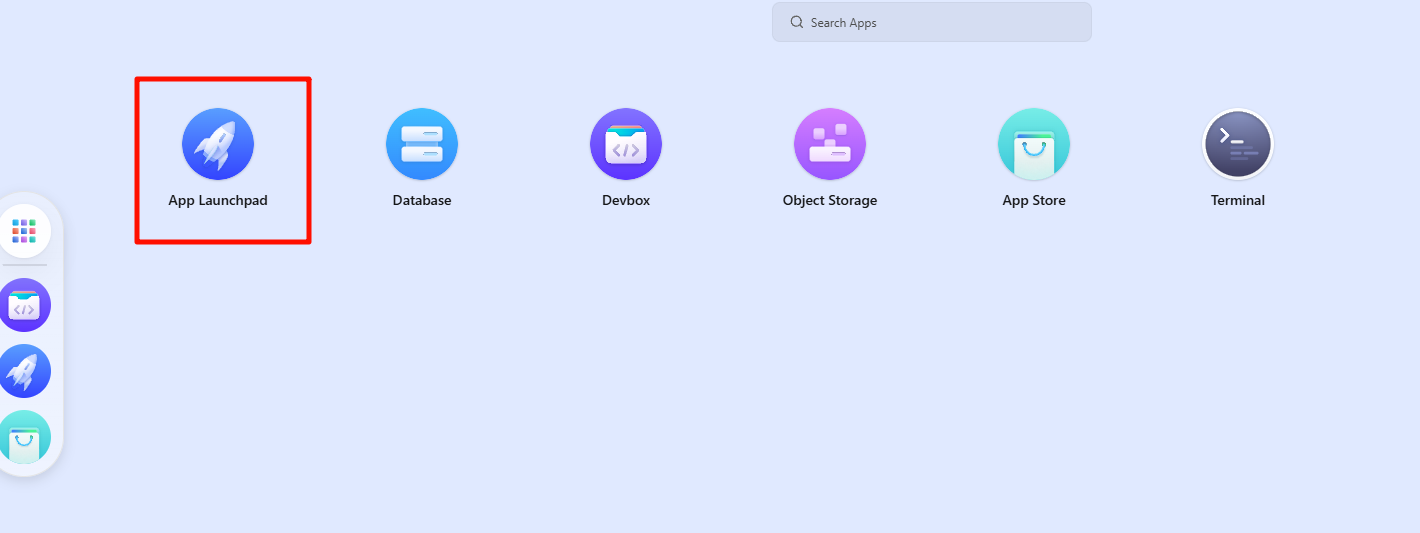
After registration, click APP Launchpad on the homepage, then click create app in the upper right corner
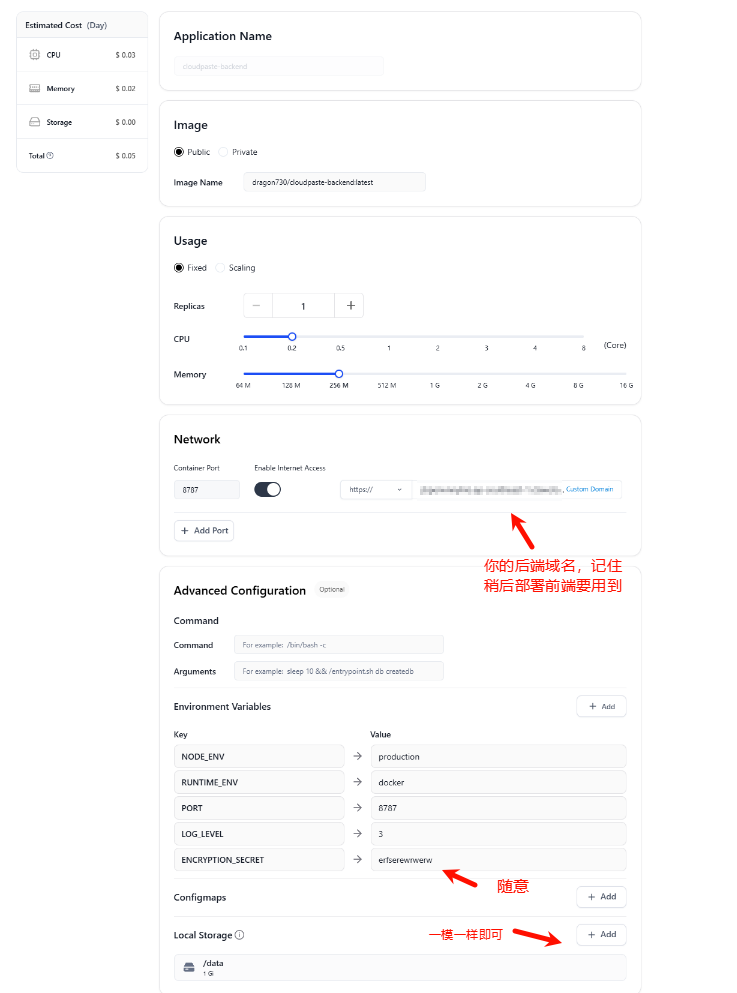
First deploy the backend, as shown in the figure (for reference only):
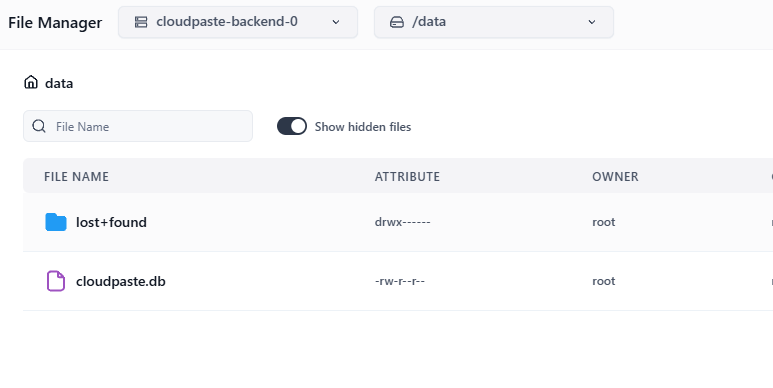
Backend data storage is here:
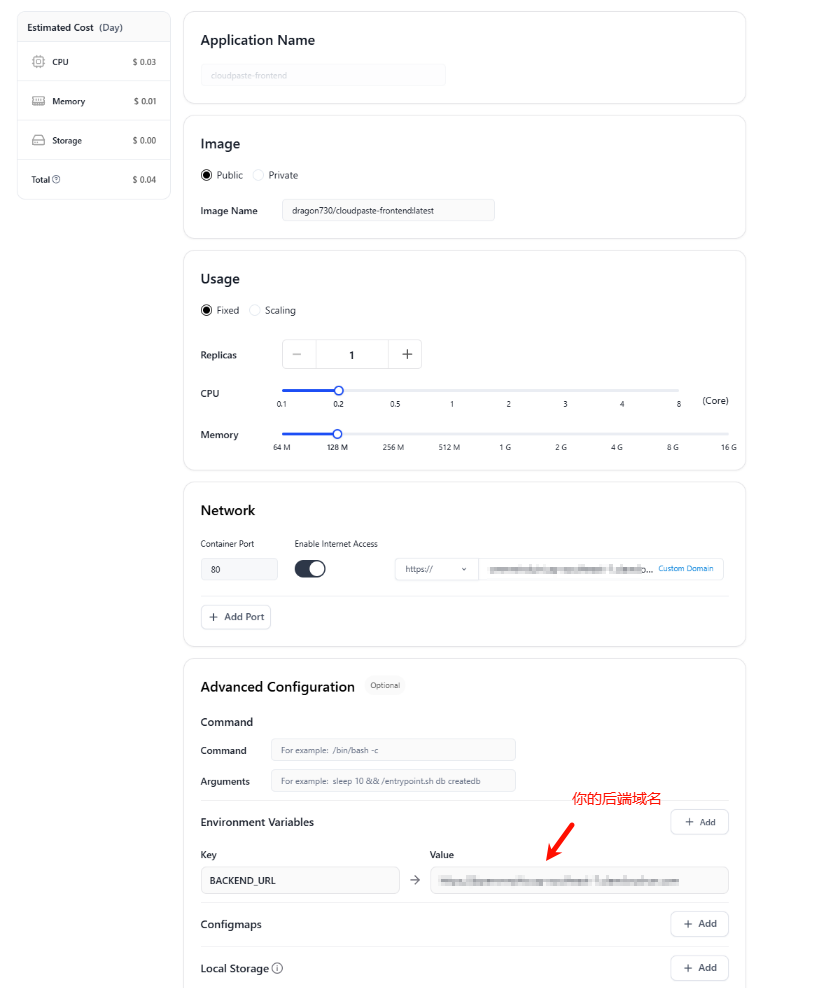
Then the frontend, as shown in the figure (for reference only):
👉 Docker Deployment Guide
CloudPaste backend can be quickly deployed using the official Docker image.
-
Create data storage directory
mkdir -p sql_data
-
Run the backend container
docker run -d --name cloudpaste-backend \
  -p 8787:8787 \
  -v $(pwd)/sql_data:/data \
  -e ENCRYPTION_SECRET=your-encryption-key \
  -e NODE_ENV=production \
  dragon730/cloudpaste-backend:latest
Note the deployment URL (e.g.,
http://your-server-ip:8787), which will be needed for the frontend deployment.
The frontend uses Nginx to serve and configures the backend API address at startup.
docker run -d --name cloudpaste-frontend \
  -p 80:80 \
  -e BACKEND_URL=http://your-server-ip:8787 \
dragon730/cloudpaste-frontend:latestWhen a new version of the project is released, you can update your Docker deployment following these steps:
-
Pull the latest images
docker pull dragon730/cloudpaste-backend:latest
docker pull dragon730/cloudpaste-frontend:latest
-
Stop and remove old containers
docker stop cloudpaste-backend cloudpaste-frontend
docker rm cloudpaste-backend cloudpaste-frontend
-
Start new containers using the same run commands as above (preserving data directory and configuration)
Using Docker Compose allows you to deploy both frontend and backend services with one click, which is the simplest recommended method.
- Create a
docker-compose.ymlfile
version: "3.8"

services:
   frontend:
      image: dragon730/cloudpaste-frontend:latest
      environment:
         - BACKEND_URL=https://xxx.com # Fill in the backend service address
      ports:
         - "8080:80" #"127.0.0.1:8080:80"
      depends_on:
         - backend # Depends on backend service
      networks:
         - cloudpaste-network
      restart: unless-stopped

   backend:
      image: dragon730/cloudpaste-backend:latest
      environment:
         - NODE_ENV=production
         - PORT=8787
         - ENCRYPTION_SECRET=custom-key # Please modify this to your own security key
         - TASK_WORKER_POOL_SIZE=2
      volumes:
         - ./sql_data:/data # Data persistence
      ports:
         - "8787:8787" #"127.0.0.1:8787:8787"
      networks:
         - cloudpaste-network
      restart: unless-stopped

networks:
   cloudpaste-network:
driver: bridge- Start the services
docker-compose up -d- Access the services
Frontend: http://your-server-ip:80
Backend: http://your-server-ip:8787
When you need to update to a new version:
-
Pull the latest images
docker-compose pull
-
Recreate containers using new images (preserving data volumes)
docker-compose up -d --force-recreate
💡 Tip: If there are configuration changes, you may need to backup data and modify the docker-compose.yml file
server {
    listen 443 ssl;
    server_name paste.yourdomain.com;  # Replace with your domain name

    # SSL certificate configuration
    ssl_certificate     /path/to/cert.pem;  # Replace with certificate path
    ssl_certificate_key /path/to/key.pem;   # Replace with key path

    # Frontend proxy configuration
    location / {
        proxy_pass http://localhost:80;  # Docker frontend service address
        proxy_set_header Host $host;
        proxy_set_header X-Real-IP $remote_addr;
    }

    # Backend API proxy configuration
    location /api {
        proxy_pass http://localhost:8787;  # Docker backend service address
        proxy_set_header Host $host;
        proxy_set_header X-Real-IP $remote_addr;
        client_max_body_size 0;

        # WebSocket support (if needed)
        proxy_http_version 1.1;
        proxy_set_header Upgrade $http_upgrade;
        proxy_set_header Connection "upgrade";
    }

    # WebDAV Configuration
    location /dav {
        proxy_pass http://localhost:8787/dav;  # Points to your backend service

        # WebDAV necessary headers
        proxy_set_header Host $host;
        proxy_set_header X-Real-IP $remote_addr;
        proxy_set_header X-Forwarded-For $proxy_add_x_forwarded_for;

        # WebDAV method support
        proxy_pass_request_headers on;

        # Support all WebDAV methods
        proxy_method $request_method;

        # Necessary header processing
        proxy_set_header Destination $http_destination;
        proxy_set_header Overwrite $http_overwrite;

        # Handle large files
        client_max_body_size 0;

        # Timeout settings
        proxy_connect_timeout 3600s;
        proxy_send_timeout 3600s;
        proxy_read_timeout 3600s;
    }
}👉 S3 Cross-Origin Configuration Guide
-
Log in to Cloudflare Dashboard
-
Click R2 Storage and create a bucket.
-
Create API token


-
Save all data after creation; you'll need it later
-
Configure cross-origin rules: click the corresponding bucket, click Settings, edit CORS policy as shown below:


[
   {
      "AllowedOrigins": ["http://localhost:3000", "https://replace-with-your-frontend-domain"],
      "AllowedMethods": ["GET", "PUT", "POST", "DELETE", "HEAD"],
      "AllowedHeaders": ["*"],
      "ExposeHeaders": ["ETag"],
      "MaxAgeSeconds": 3600
   }
]-
If you don't have a B2 account, register one first, then create a bucket.

-
Click Application Key in the sidebar, click Create Key, and follow the illustration.

-
Configure B2 cross-origin; B2 cross-origin configuration is more complex, take note

-
You can try options 1 or 2 first, go to the upload page and see if you can upload. If F12 console shows cross-origin errors, use option 3. For a permanent solution, use option 3 directly.


Regarding option 3 configuration, since the panel cannot configure it, you need to configure manually by downloading B2 CLI tool. For more details, refer to: "https://docs.cloudreve.org/zh/usage/storage/b2".
After downloading, in the corresponding download directory CMD, enter the following commands:
b2-windows.exe account authorize   //Log in to your account, following prompts to enter your keyID and applicationKey
b2-windows.exe bucket get <bucketName> //You can execute to get bucket information, replace <bucketName> with your bucket name
Windows configuration, Use ".\b2-windows.exe xxx", Python CLI would be similar:
b2-windows.exe bucket update <bucketName> allPrivate --cors-rules "[{\"corsRuleName\":\"CloudPaste\",\"allowedOrigins\":[\"*\"],\"allowedHeaders\":[\"*\"],\"allowedOperations\":[\"b2_upload_file\",\"b2_download_file_by_name\",\"b2_download_file_by_id\",\"s3_head\",\"s3_get\",\"s3_put\",\"s3_post\",\"s3_delete\"],\"exposeHeaders\":[\"Etag\",\"content-length\",\"content-type\",\"x-bz-content-sha1\"],\"maxAgeSeconds\":3600}]"Replace with your bucket name. For allowedOrigins in the cross-origin allowance, you can configure based on your needs; here it allows all.
- Cross-origin configuration complete
-
Deploy MinIO Server
Use the following Docker Compose configuration (reference) to quickly deploy MinIO:
version: "3"

services:
  minio:
    image: minio/minio:RELEASE.2025-02-18T16-25-55Z
    container_name: minio-server
    command: server /data --console-address :9001 --address :9000
    environment:
      - MINIO_ROOT_USER=minioadmin # Admin username
      - MINIO_ROOT_PASSWORD=minioadmin # Admin password
      - MINIO_BROWSER=on
      - MINIO_SERVER_URL=https://minio.example.com # S3 API access URL
      - MINIO_BROWSER_REDIRECT_URL=https://console.example.com # Console access URL
    ports:
      - "9000:9000" # S3 API port
      - "9001:9001" # Console port
    volumes:
      - ./data:/data
      - ./certs:/root/.minio/certs # SSL certificates (if needed)
    restart: always
Run
docker-compose up -dto start the service. -
Configure Reverse Proxy (Reference)
To ensure MinIO functions correctly, especially file previews, configure reverse proxy properly. Recommended OpenResty/Nginx settings:
MinIO S3 API Reverse Proxy (minio.example.com):
location / {
    proxy_pass http://127.0.0.1:9000;
    proxy_set_header Host $host;
    proxy_set_header X-Real-IP $remote_addr;
    proxy_set_header X-Forwarded-For $proxy_add_x_forwarded_for;
    proxy_set_header X-Forwarded-Proto $scheme;

    # HTTP optimization
    proxy_http_version 1.1;
    proxy_set_header Connection "";  # Enable HTTP/1.1 keepalive

    # Critical: Resolve 403 errors & preview issues
    proxy_cache off;
    proxy_buffering off;
    proxy_request_buffering off;

    # No file size limit
    client_max_body_size 0;
}
MinIO Console Reverse Proxy (console.example.com):
location / {
    proxy_pass http://127.0.0.1:9001;
    proxy_set_header Host $host;
    proxy_set_header X-Real-IP $remote_addr;
    proxy_set_header X-Forwarded-For $proxy_add_x_forwarded_for;
    proxy_set_header X-Forwarded-Proto $scheme;

    # WebSocket support
    proxy_http_version 1.1;
    proxy_set_header Upgrade $http_upgrade;
    proxy_set_header Connection "upgrade";

    # Critical settings
    proxy_cache off;
    proxy_buffering off;

    # No file size limit
    client_max_body_size 0;
}
-
Access Console to Create Buckets & Access Keys
For detailed configuration, refer to official docs:
https://min.io/docs/minio/container/index.html
CN: https://min-io.cn/docs/minio/container/index.html
-
Additional Configuration (Optional)
Allowed origins must include your frontend domain.

-
Configure MinIO in CloudPaste
- Log in to CloudPaste admin panel
- Go to "S3 Storage Settings" → "Add Storage Configuration"
- Select "Other S3-compatible service" as provider
- Enter details:
- Name: Custom name
- Endpoint URL: MinIO service URL (e.g.,
https://minio.example.com) - Bucket Name: Pre-created bucket
- Access Key ID: Your Access Key
- Secret Key: Your Secret Key
- Region: Leave empty
- Path-Style Access: MUST ENABLE!
- Click "Test Connection" to verify
- Save settings
-
Troubleshooting
- Note: If using Cloudflare's CDN, you may need to add
proxy_set_header Accept-Encoding "identity", and there are caching issues to consider. It is recommended to use only DNS resolution. - 403 Error: Ensure reverse proxy includes
proxy_cache off&proxy_buffering off - Preview Issues: Verify
MINIO_SERVER_URL&MINIO_BROWSER_REDIRECT_URLare correctly set - Upload Failures: Check CORS settings; allowed origins must include frontend domain
- Console Unreachable: Verify WebSocket config, especially
Connection "upgrade"
- Note: If using Cloudflare's CDN, you may need to add


👉 WebDAV Configuration Guide
CloudPaste provides simple WebDAV protocol support, allowing you to mount storage spaces as network drives for convenient access and management of files directly through file managers.
- WebDAV Base URL:
https://your-backend-domain/dav - Supported Authentication Methods:
- Basic Authentication (username+password)
- Supported Permission Types:
- Administrator accounts - Full operation permissions
- API keys - Requires enabled mount permission (mount_permission)
Use administrator account and password to directly access the WebDAV service:
- Username: Administrator username
- Password: Administrator password
For a more secure access method, it is recommended to create a dedicated API key:
- Log in to the management interface
- Navigate to "API Key Management"
- Create a new API key, ensure "Mount Permission" is enabled
- Usage method:
- Username: API key value
- Password: The same API key value as the username
If using NGINX as a reverse proxy, specific WebDAV configuration needs to be added to ensure all WebDAV methods work properly:
# WebDAV Configuration
location /dav {
    proxy_pass http://localhost:8787;  # Points to your backend service

    # WebDAV necessary headers
    proxy_set_header Host $host;
    proxy_set_header X-Real-IP $remote_addr;
    proxy_set_header X-Forwarded-For $proxy_add_x_forwarded_for;

    # WebDAV method support
    proxy_pass_request_headers on;

    # Support all WebDAV methods
    proxy_method $request_method;

    # Necessary header processing
    proxy_set_header Destination $http_destination;
    proxy_set_header Overwrite $http_overwrite;

    # Handle large files
    client_max_body_size 0;

    # Timeout settings
    proxy_connect_timeout 3600s;
    proxy_send_timeout 3600s;
    proxy_read_timeout 3600s;
}-
Connection Problems:
- Confirm the WebDAV URL format is correct
- Verify that authentication credentials are valid
- Check if the API key has mount permission
-
Permission Errors:
- Confirm the account has the required permissions
- Administrator accounts should have full permissions
- API keys need to have mount permission specifically enabled
-
⚠️ ⚠️ WebDAV Upload Issues:- The upload size for webdav deployed by Workers may be limited by CF's CDN restrictions to around 100MB, resulting in a 413 error.
- For Docker deployments, just pay attention to the nginx proxy configuration, any upload mode is acceptable
- Framework: Vue.js 3 + Vite
- Styling: TailwindCSS
- Editor: Vditor
- Internationalization: Vue-i18n
- Charts: Chart.js + Vue-chartjs
- Runtime: Cloudflare Workers
- Framework: Hono
- Database: Cloudflare D1 (SQLite)
- Storage: Multiple S3-compatible services (supports R2, B2, AWS S3)
- Authentication: JWT tokens + API keys
Server Direct File Upload API Documentation - Detailed description of the server direct file upload interface
-
Clone project repository
git clone https://github.com/ling-drag0n/cloudpaste.git cd cloudpaste -
Backend setup
cd backend
npm install
# Initialize D1 database
wrangler d1 create cloudpaste-db
wrangler d1 execute cloudpaste-db --file=./schema.sql
-
Frontend setup
cd frontend npm install -
Configure environment variables
- In the
backenddirectory, create awrangler.tomlfile to set development environment variables - In the
frontenddirectory, configure the.env.developmentfile to set frontend environment variables
- In the
-
Start development servers
# Backend
cd backend
npm run dev

# Frontend (in another terminal)
cd frontend
npm run dev
CloudPaste/
├── frontend/                         # Frontend Vite + Vue 3 SPA
│   ├── src/
│   │   ├── api/                      # HTTP client & API services (no domain semantics)
│   │   ├── modules/                  # Domain modules layer (by business area)
│   │   │   ├── paste/                # Text sharing (editor / public view / admin)
│   │   │   ├── fileshare/            # File sharing (public page / admin)
│   │   │   ├── fs/                   # Mounted file system explorer (MountExplorer)
│   │   │   ├── upload/               # Upload controller & upload views
│   │   │   ├── storage-core/         # Storage drivers & Uppy wiring (low-level abstraction)
│   │   │   ├── security/             # Frontend auth bridge & Authorization header helpers
│   │   │   ├── pwa-offline/          # PWA offline queue & state
│   │   │   └── admin/                # Admin panel (dashboard / settings / key management, etc.)
│   │   ├── components/               # Reusable, cross-module UI components (no module imports)
│   │   ├── composables/              # Shared composition APIs (file-system / preview / upload, etc.)
│   │   ├── stores/                   # Pinia stores (auth / fileSystem / siteConfig, etc.)
│   │   ├── router/                   # Vue Router configuration (single entry for all views)
│   │   ├── pwa/                      # PWA state & installation prompts
│   │   ├── utils/                    # Utilities (clipboard / time / file icons, etc.)
│   │   ├── styles/                   # Global styles & Tailwind config entry
│   │   └── assets/                   # Static assets
│   ├── eslint.config.cjs             # Frontend ESLint config (including import boundaries)
│   ├── vite.config.js                # Vite build configuration
│   └── package.json
├── backend/                          # Backend (Cloudflare Workers / Docker runtime)
│   ├── src/
│   │   ├── routes/                   # HTTP routing layer (fs / files / pastes / admin / system, etc.)
│   │   │   ├── fs/                   # Mount FS APIs (list / read / write / search / share)
│   │   │   ├── files/                # File sharing APIs (public / protected)
│   │   │   ├── pastes/               # Text sharing APIs (public / protected)
│   │   │   ├── adminRoutes.js        # Generic admin routes
│   │   │   ├── apiKeyRoutes.js       # API key management routes
│   │   │   ├── mountRoutes.js        # Mount configuration routes
│   │   │   ├── systemRoutes.js       # System settings & dashboard stats
│   │   │   └── fsRoutes.js           # Unified FS entry aggregation
│   │   ├── services/                 # Domain services (pastes / files / system / apiKey, etc.)
│   │   ├── security/                 # Auth + authorization (AuthService / securityContext / authorize / policies)
│   │   ├── webdav/                   # WebDAV implementation & path handling
│   │   ├── storage/                  # Storage abstraction (S3 drivers, mount manager, file system ops)
│   │   ├── repositories/             # Data access layer (D1 + SQLite repositories)
│   │   ├── cache/                    # Cache & invalidation (mainly FS)
│   │   ├── constants/                # Constants (ApiStatus / Permission / DbTables / UserType, etc.)
│   │   ├── http/                     # Unified error types & response helpers
│   │   └── utils/                    # Utilities (common / crypto / environment, etc.)
│   ├── schema.sql                    # D1 / SQLite schema bootstrap
│   ├── wrangler.toml                 # Cloudflare Workers / D1 configuration
│   └── package.json
├── docs/                             # Architecture & design docs
│   ├── frontend-architecture-implementation.md    # Frontend layering & modules/* design
│   ├── frontend-architecture-optimization-plan.md # Frontend optimization plan (Phase 2/3)
│   ├── auth-permissions-design.md                # Auth & permissions system design
│   └── backend-error-handling-refactor.md        # Backend error handling refactor design
├── docker/                           # Docker & Compose deployment configs
├── images/                           # Screenshots used in README
├── Api-doc.md                        # API overview
├── Api-s3_direct.md                  # S3 direct upload API docs
└── README.md                         # Main project README
If you want to customize Docker images or debug during development, you can follow these steps to build manually:
-
Build backend image
# Execute in the project root directory
docker build -t cloudpaste-backend:custom -f docker/backend/Dockerfile .

# Run the custom built image
docker run -d --name cloudpaste-backend \
  -p 8787:8787 \
  -v $(pwd)/sql_data:/data \
  -e ENCRYPTION_SECRET=development-test-key \
  cloudpaste-backend:custom
-
Build frontend image
# Execute in the project root directory
docker build -t cloudpaste-frontend:custom -f docker/frontend/Dockerfile .

# Run the custom built image
docker run -d --name cloudpaste-frontend \
  -p 80:80 \
  -e BACKEND_URL=http://localhost:8787 \
  cloudpaste-frontend:custom
-
Development environment Docker Compose
Create a
docker-compose.dev.ymlfile:version: "3.8" services: frontend: build: context: . dockerfile: docker/frontend/Dockerfile environment: - BACKEND_URL=http://backend:8787 ports: - "80:80" depends_on: - backend backend: build: context: . dockerfile: docker/backend/Dockerfile environment: - NODE_ENV=development - RUNTIME_ENV=docker - PORT=8787 - ENCRYPTION_SECRET=dev_secret_key volumes: - ./sql_data:/data ports: - "8787:8787"
Start the development environment:
docker-compose -f docker-compose.yml up --build
Apache License 2.0
This project is licensed under the Apache License 2.0 - see the LICENSE file for details.
-
Sponsorship: Maintaining the project is not easy. If you like this project, you can give the author a little encouragement. Every bit of your support is the motivation for me to move forward~

-
Sponsors: A huge thank you to the following sponsors for their support of this project!!
-
-
Contributors: Thanks to the following contributors for their selfless contributions to this project!


If you think the project is good I hope you can give a free star✨✨, Thank you very much!